
Representative Image
On Macs, for example, “Command + C” copies selected text and “Command + V” pastes it. You can also right-click to copy and paste text, although keyboard shortcuts remain available.
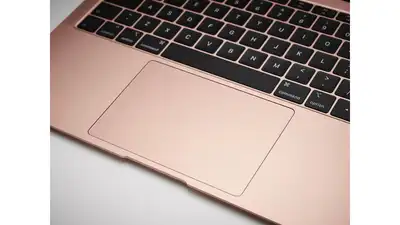
Switching from Windows to Mac can take some time, particularly when familiar controls work differently. One function new Mac users may look for is right-click, since MacBook trackpads and Apple ‘s Magic Mouse don’t have a separate right-click button like Windows PC mice. There are two ways to right-click on a MacBook trackpad or Magic Mouse. You can hold the Control key while clicking, or enable Apple’s Secondary click option in System Settings. The latter lets you assign a specific part of the trackpad or mouse surface to perform a right-click, so you can use the function without pressing a keyboard key. The quickest way to right-click on a Mac doesn’t require changing any settings. Hold the Control key and click the trackpad at the same time. macOS will open the contextual menu associated with the selected item. For regular trackpad use, macOS also lets you configure a Secondary click. Open System Settings on your Mac, select Trackpad, and then choose Secondary click. For people moving from a Windows PC, selecting the right side of the Magic Mouse as the secondary-click area can replicate the familiar right-click behaviour of a conventional PC mouse. Secondary click provides access to contextual menus for files, images, text and other items in macOS. Depending on what you select, the menu can provide options to open a file with a particular application, view information, copy content, or share an item.