PC: AI Generated
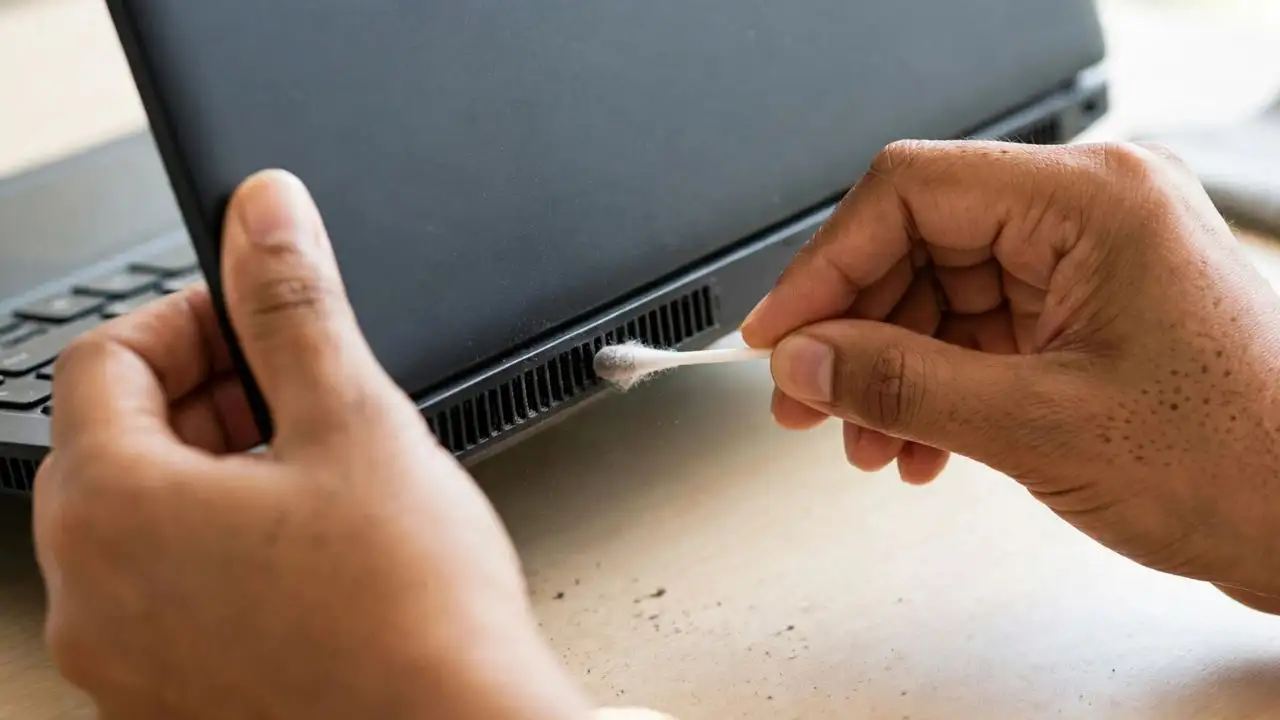
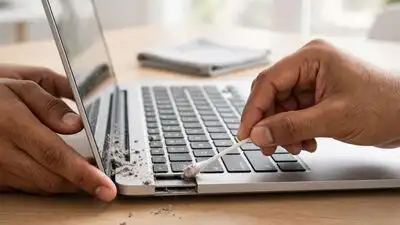
Because its small tip provides you with better control than a large cloth, a cotton swab can be useful for these spots. Because they allow air to move through the laptop, pC: AI Generated Vents are important. Because they can collect dust and tiny pieces of debris, pC: AI Generated Keyboard gaps deserve regular attention.
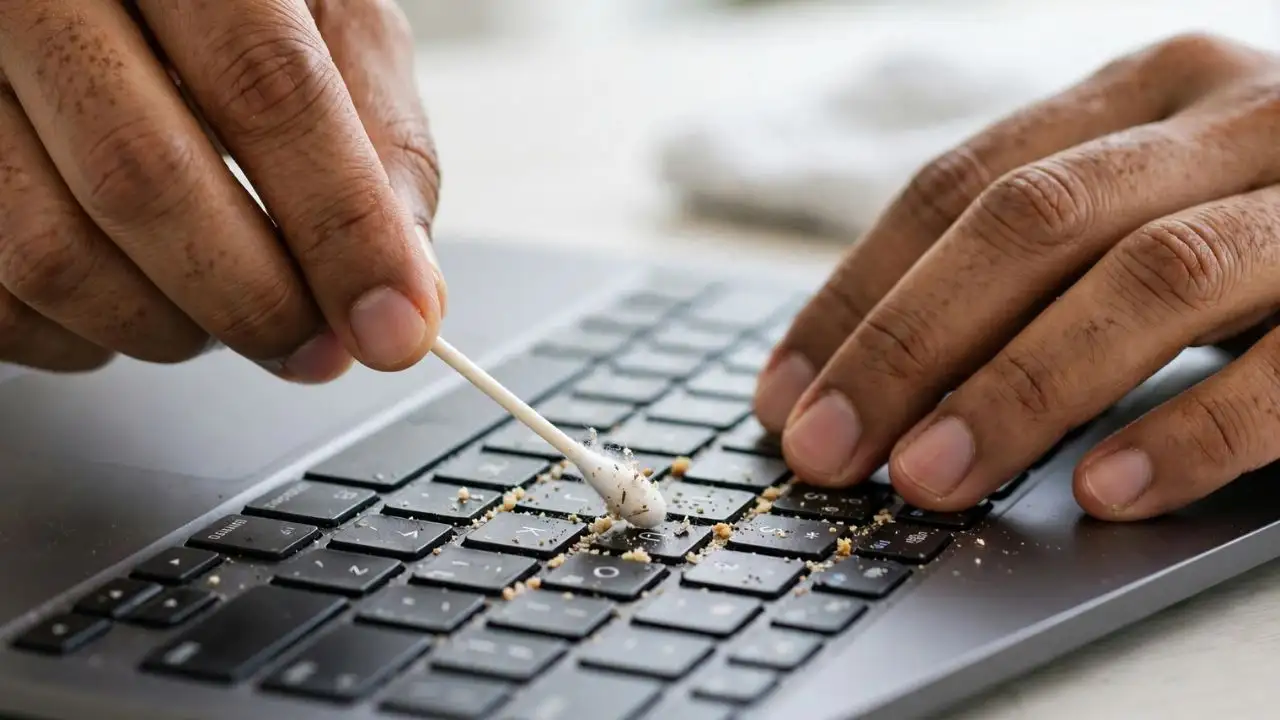
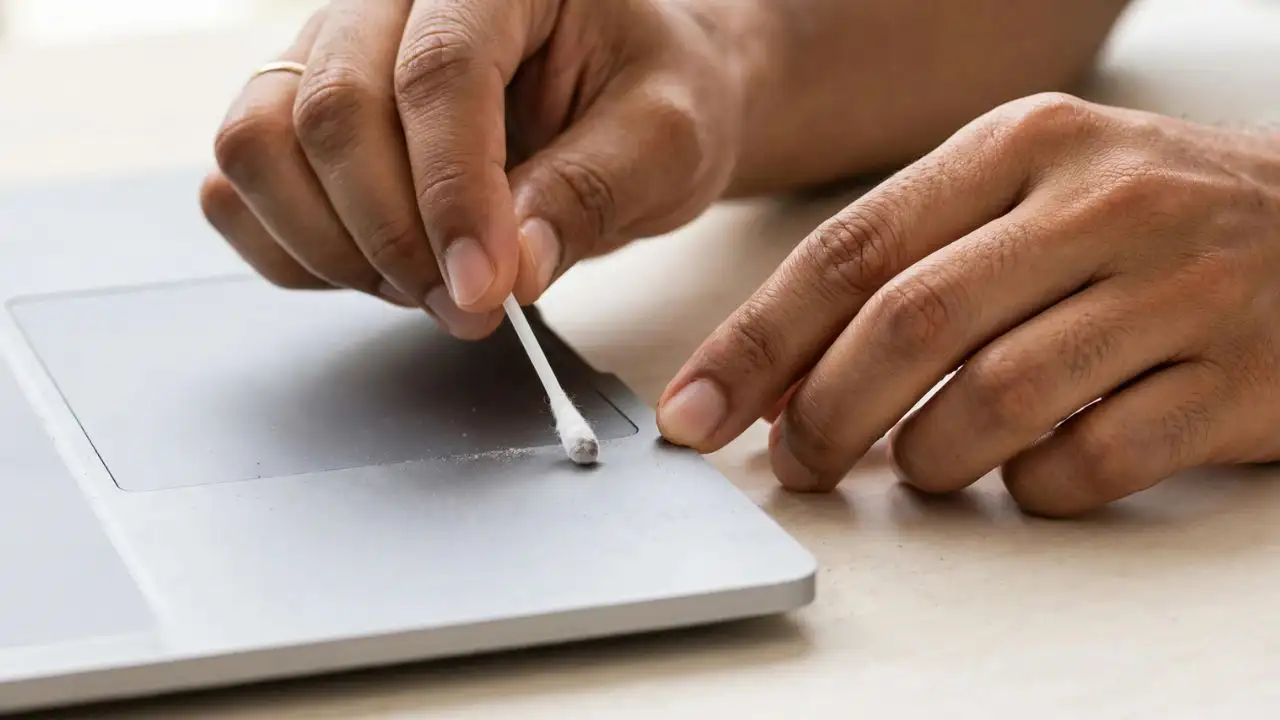
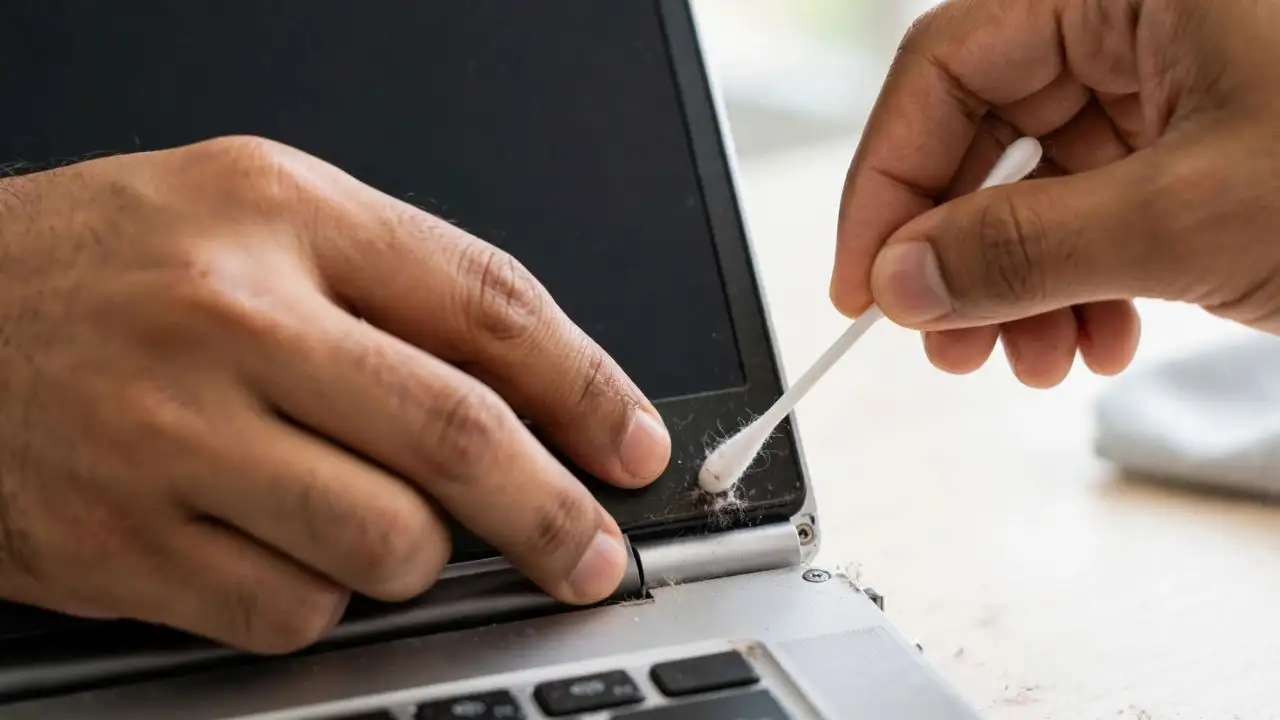
A laptop can look clean on the surface while dust quietly settles in places you rarely notice. Fine particles can collect between keyboard keys, around the touchpad, near the hinges, and inside narrow ventilation openings. Crumbs, hair, and other debris can also gather along seams where a regular cloth cannot reach. It can remove dust from corners without putting unnecessary pressure on delicate parts. But cleaning a laptop safely is not about wiping every gap you can find. The device should be switched off and unplugged first. Cotton swabs should remain dry when used around openings and should never be pushed deep inside the machine. With the right technique, this simple household item can help keep your laptop cleaner without turning routine maintenance into a costly repair. The keyboard is one of the easiest places for dust, hair, and food particles to collect. Even when the keys look clean, debris can remain around their edges. Take a dry cotton swab and gently move it around the sides of each key. Use the tip to collect dust in narrow gaps. Do not press hard or try to force the swab underneath a key. PC: AI Generated The narrow border around a touchpad can collect dust, skin oils, and tiny particles. A cotton swab can follow this edge more precisely than a cloth. Use a completely dry cotton swab and move it slowly along the seams without pressing down. Pay particular attention to the corners where dust can settle. For the touchpad surface itself, use a soft microfibre cloth. If a cleaning solution is needed, apply a small amount to the cloth rather than directly to the laptop. PC: AI Generated Laptop lids, palm rests and panels often have small seams where dust settles. A dry cotton swab can pick up loose particles from these narrow spaces. Roll the swab gently between your fingers as you move it along the seam so the cotton collects the dust rather than pushing it further inside. Do not insert the swab deeply. If a gap leads towards internal components, stop at the accessible surface. Dust around these openings can be removed with a dry cotton swab. Gently run the swab along the visible edges of the vent. Do not push the cotton tip through the grille. This could move dust further inside. If the vents have heavy internal dust buildup, an appropriate air blower or professional cleaning may be safer than trying to reach deep inside with a cotton swab. Food particles can become particularly difficult to remove once they are pressed further into the keyboard. A dry cotton swab can pick up loose material around the edges of the keys. Work slowly and avoid pressing down on the keys. If you often eat near your laptop, check the keyboard more frequently. Small crumbs can accumulate quickly even when the rest of the device appears clean. PC: AI Generated A wet cotton swab can leave liquid around keys, seams, or openings where it may reach internal components. Keep the swab dry when cleaning gaps and vents. If a damp cloth is required for an exterior surface, use only a small amount of suitable cleaning solution on the cloth. USB ports, headphone jacks and other openings can collect dust. It may seem convenient to push a cotton swab inside, but doing so can compact debris further into the port or leave cotton fibres behind. Clean around the outside of ports instead. For debris that is trapped inside, follow the manufacturer’s cleaning guidance or seek professional help. Cotton swabs are intended for small gaps rather than large delicate surfaces. Using one across a screen can leave fibres behind and may create uneven pressure. Use a clean microfibre cloth designed for screens. Keep liquids away from the edges of the display and never spray cleaning products directly onto the screen. Always shut down the laptop before cleaning. This prevents accidental key presses and reduces the chance of moisture or debris entering openings while the machine is operating. Turn the laptop completely off and disconnect the charger and other cables before cleaning. Run the swab around the edges of the keys rather than forcing it underneath them. This helps lift loose dust and crumbs without putting unnecessary pressure on the keys. Use the narrow cotton tip to follow the border around the touchpad, especially at the corners where dust can settle. Move the cotton swab along accessible seams on the palm rest, lid and outer panels. Stop if the gap leads towards internal components. A cotton swab can pick up dust around the outside of ventilation grilles, but don’t push it through the openings. Cotton swabs are best for small areas. Use a clean microfibre cloth for the keyboard surface, palm rest and screen. If a suitable cleaning solution is needed for an exterior surface, apply a small amount to the cloth rather than spraying the device. USB ports, headphone jacks, and other openings can trap fibres or have debris pushed deeper when cleaned with a swab. Once the cotton tip becomes covered in dust, switch to a fresh one instead of moving the collected debris to another part of the laptop. Get the latest technology news and updates. Download the TOI App.